What is Puppet? Why is it used?

The concept of Configuration Management or CM talks about the different processes in Systems Engineering used for establishing and maintaining consistency of a product's performance, its functional and physical attributes with design and requirements, and the operation data throughout its lifecycle.
What is Puppet?
Puppet is an open-source Software Configuration Management and Deployment tool. It's mostly used in Linux Cloud environments to automate infrastructure, management of different servers, etc.
Puppet Architecture
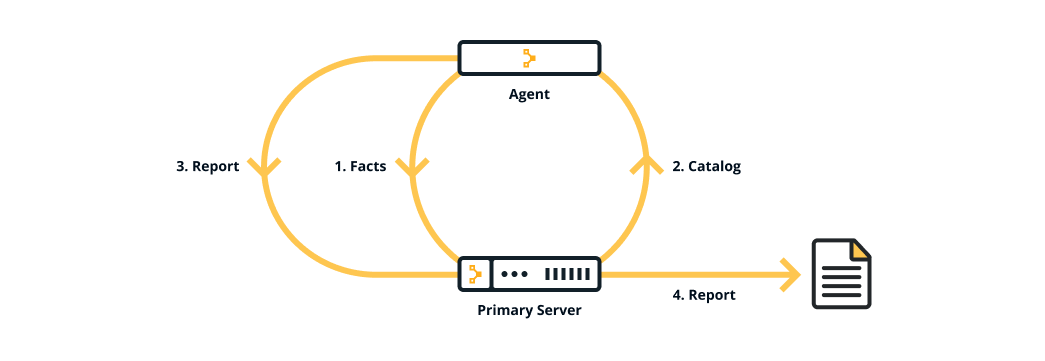
Puppet uses a Master-Agent architecture in which the Master and Slave communicate through a secure encrypted channel with the help of SSL.
Puppet Master
Puppet Master is the Hub or the main node in the network of systems that handles all the configuration across systems. It is capable of applying different configurations to other nodes called Puppet Agents.
Puppet Agent
Puppet Agents are working machines in which different servers are set up for different use cases. These servers and their configurations are managed by the Puppet Master.
Use Cases
Server and Database Management
Multiple Servers and Databases can be controlled in one place using Puppet.System Configuration
A key feature of Puppet is that multiple systems can be configured at once from the Puppet Master device.Networking
Due to Puppet's architecture, it can be used for secure networking and data transfer across systems.Container Management
Puppet makes it easy to integrate containers with existing IT infrastructure.
We now have a decent understanding of how useful Puppet can be. Let's try it out, shall we?
Real-life Task: Provisioning a LAMP Stack using Puppet
Have you guys heard about the LAMP Stack?
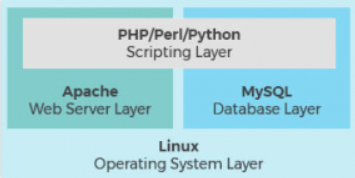 LAMP stands for Linux-Apache-MySQL-PHP.
It's a pretty famous PHP web stack used to create web applications. A very popular framework Laravel is based on this stack too!
LAMP stands for Linux-Apache-MySQL-PHP.
It's a pretty famous PHP web stack used to create web applications. A very popular framework Laravel is based on this stack too!
Let's take up a small task, where we provide a LAMP stack to 2 different machines from one puppet master. So we connect the master machine to these two agents and then from the master machine, we run certain commands to install the dependencies for a LAMP stack (i.e. Apache, PHP, MySQL) from the same, onto these two agent machines.
Cloud Services to be used
- AWS EC2
Login with your IAM account in the AWS Console and open up the EC2 Dashboard
Creating an EC2 Security Group
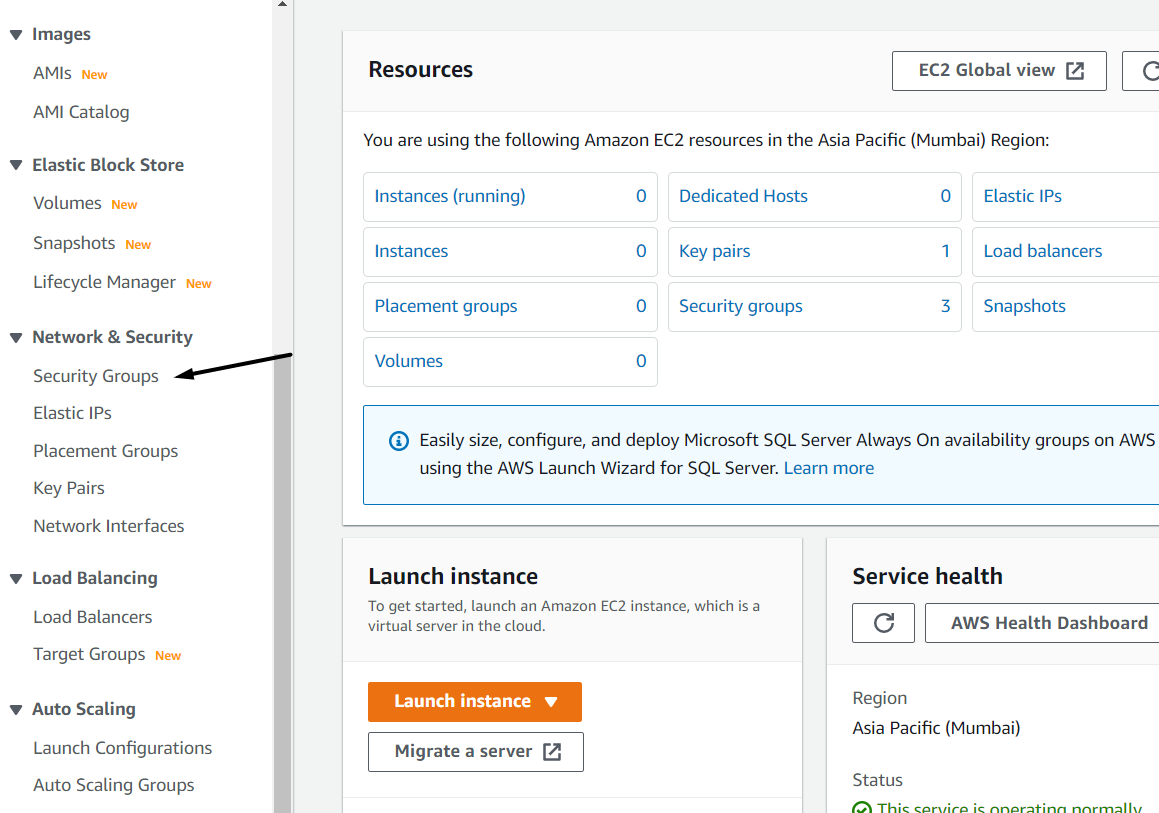
To ensure that all our master machine will be able to interact with its clients, we need some modifications to our Instance Security Rules. Under Network and Security, choose Security Groups.
Click on Create to create a new Security Group.
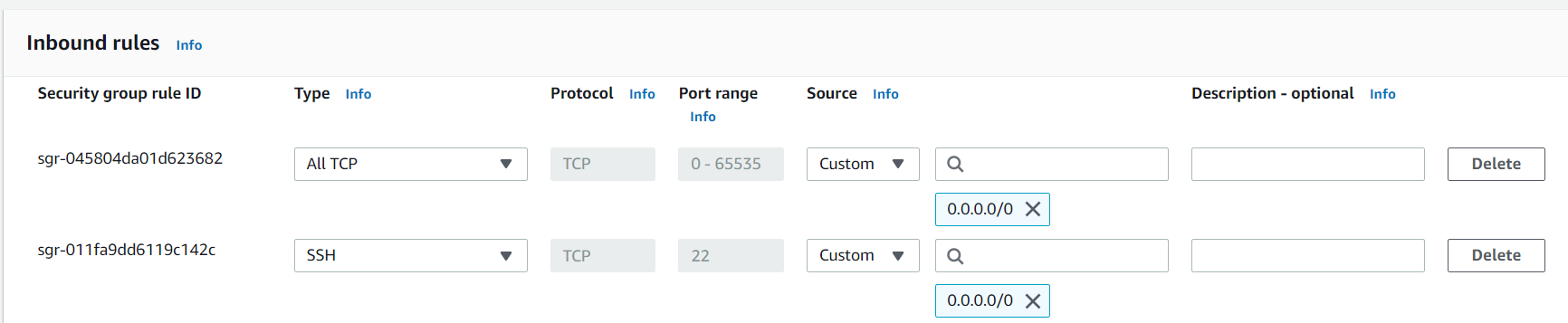
Under Inbound Rules, add two entries to allow all traffic via All TCP and SSH. Once done, apply the changes.
Launching 3 AWS EC2 Instances
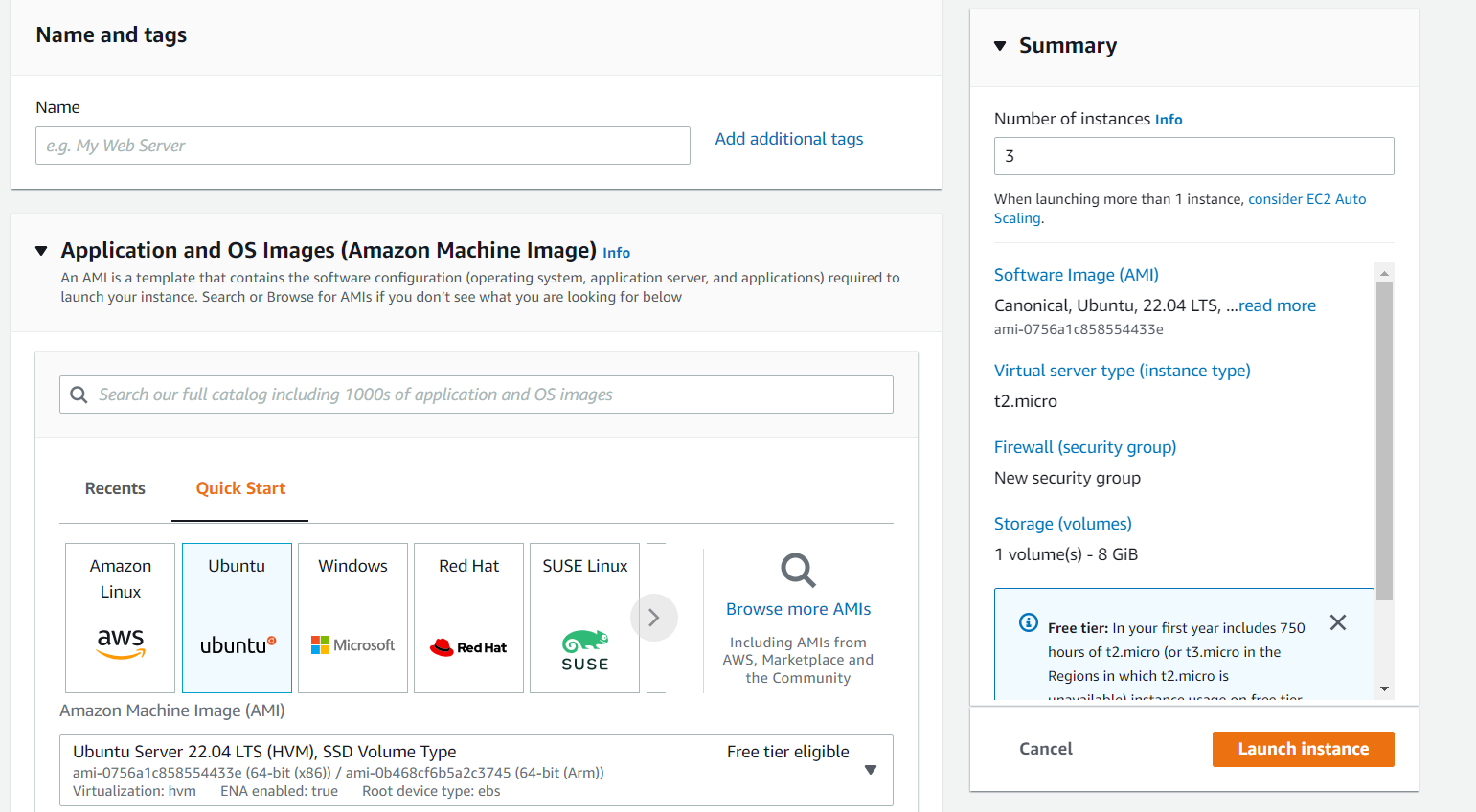 Back in the EC2 Dashboard, click on Launch Instance to launch our EC2 Instances.
We'll be using 3 instances, 1 as our master and 2 agents.
Enter 3 in the Number of Instances and change the AMI to Ubuntu 22.04 so that we get 3 Ubuntu Linux instances.
Back in the EC2 Dashboard, click on Launch Instance to launch our EC2 Instances.
We'll be using 3 instances, 1 as our master and 2 agents.
Enter 3 in the Number of Instances and change the AMI to Ubuntu 22.04 so that we get 3 Ubuntu Linux instances.
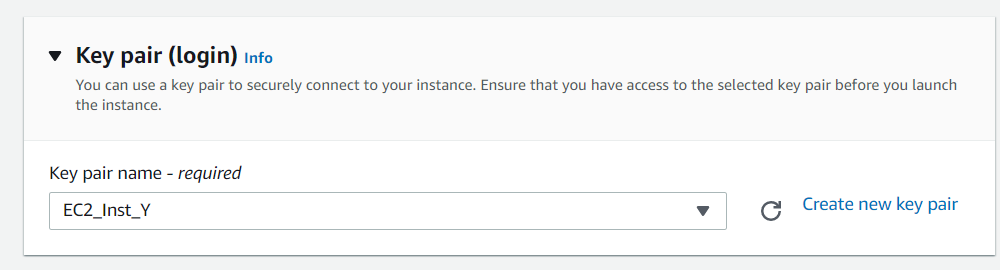
Create a new Key Pair or add a pre-existing one. You'll need the PEM file locally to be able to access the machine via SSH or you can simply connect to this machine using EC2 Instance-Connect.
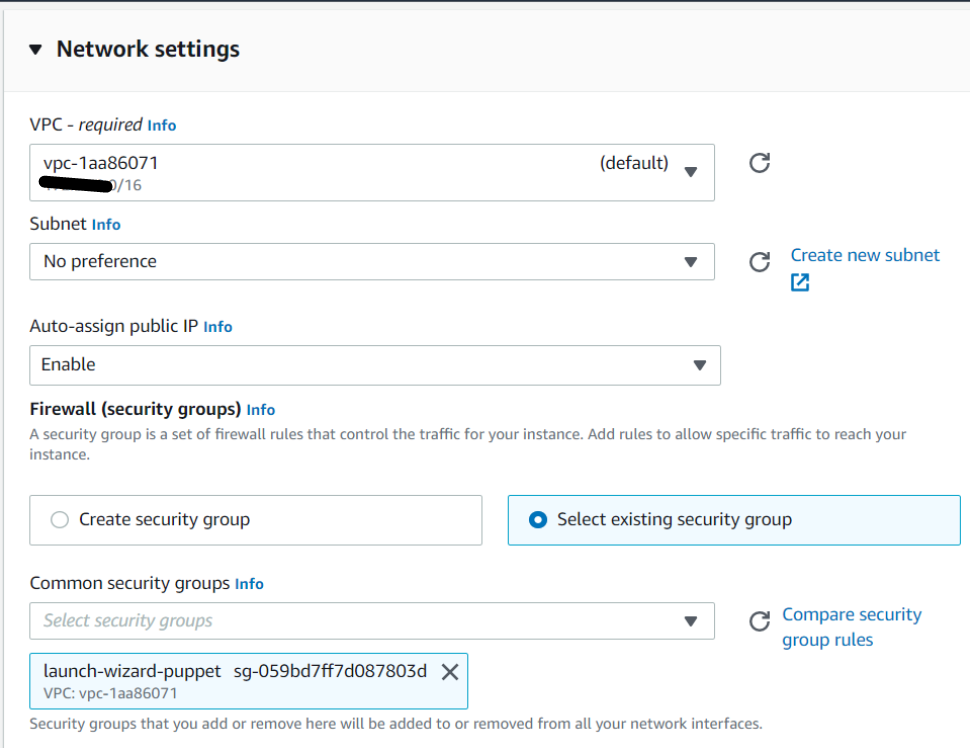
Under Network Settings, instead of creating a new Security Group, choose the one we just created and click on Launch Instance to successfully launch all 3 of our machines.
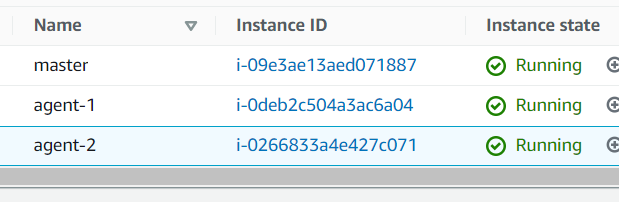 You can rename these machines for further convenience.
Connecting to an EC2 Instance via SSH
You can connect to your EC2 instance using EC2 Instance Connect directly on the browser, but I'm going to demonstrate a remote connection using SSH.
Open your Terminal and change your directory to the folder where your PEM file is located. In my case, it is in the downloads folder.
ssh -i EC2KeyFile.PEM ubuntu@YOUR_INSTANCE_PUBLIC_IP
Then, run this command to connect to your EC2 instance via SSH. You can find your EC2 Instance's Public IP address in the Details.
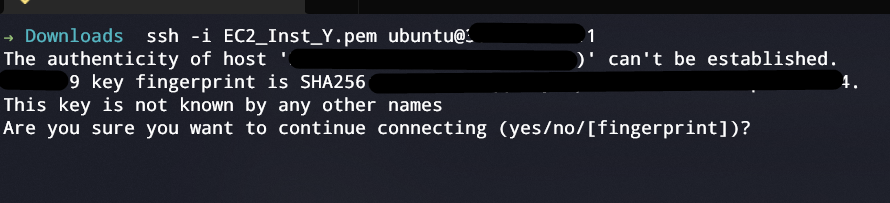
Click yes on receiving this prompt to complete the connection.
You need to do this process on all 3 instances individually.
Updating the Hosts File
Once we are done remotely connecting to all 3 instances, we can start working on them.
On ALL THREE machines, run the following commands.
sudo apt-get update -y
sudo nano /etc/hosts
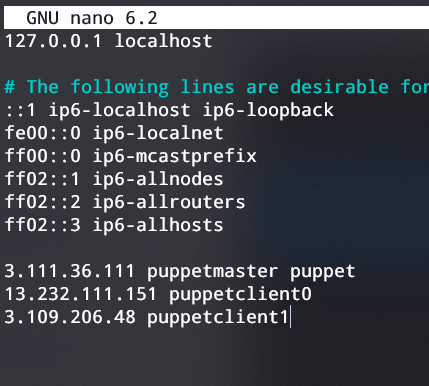 Nano will open the hosts file. In which, you have to add these lines in all 3 machines. Add your public IP addresses accordingly.
Use Ctrl + S to Save and Ctrl + X to Exit.
<IP_OF_MASTER> puppetmaster puppet
<IP_OF_Agent-1> puppetclient0
<IP_OF_Agent-2> puppetclient1
Installing puppet-server on the Puppet Master
Perform these commands only on the master machine.
# Download the Puppet Release
wget https://apt.puppetlabs.com/puppet6-release-focal.deb

# Use dpkg to add Puppet to the package list
sudo dpkg -i puppet6-release-focal.deb

# Update the Package Repository
sudo apt-get update -y

# Install Puppet Server
sudo apt-get install puppetserver -y

# Update Configuration
sudo nano /etc/default/puppetserver

## Change 2g to 200m or 300m to reduce memory usage

# Restart and enable puppetserver
systemctl restart puppetserver
systemctl enable puppetserver
# Check puppetserver status
systemctl status puppetserver
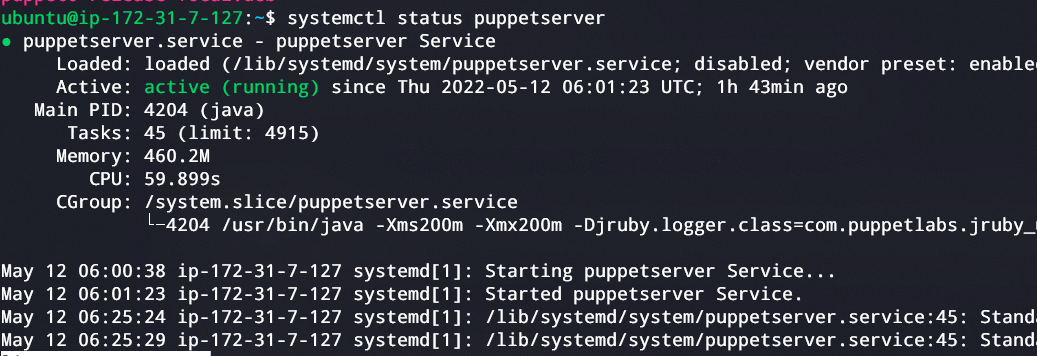
If you see this output, you're good to go.
Installing puppet-agent on the Puppet Agents
Run the following commands on both agent machines.
# Download the Puppet Release
wget https://apt.puppetlabs.com/puppet6-release-focal.deb

# Use dpkg to add Puppet to the package list
sudo dpkg -i puppet6-release-focal.deb

# Update the Package Repository
sudo apt-get update -y

# Install Puppet Agent
sudo apt-get install puppet-agent -y

# Start and Enable Puppet
sudo systemctl start puppet
sudo systemctl enable puppet

# Check Puppet Service status
sudo systemctl status puppet
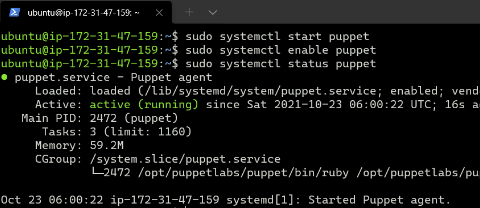
If you see a similar output, the puppet agents are configured properly.
Validating Certificates
Now, we need to sign the certificate requests of these agents on the Master Machine.
On the master machine, run these commands.
## List CA Certificates
sudo /opt/puppetlabs/bin/puppetserver ca list

## Sign All Certificates
sudo /opt/puppetlabs/bin/puppetserver ca sign --all


This message means that the certificates were signed successfully.
Testing the connection
Run this command on the master to test the agents
sudo /opt/puppetlabs/bin/puppet agent --test
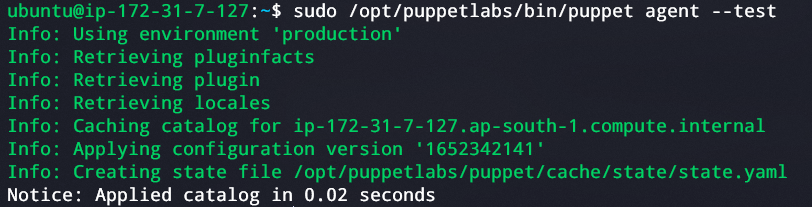
We've successfully connected two puppet agents to a puppet master. Next up, we'll be provisioning a LAMP stack from the master to the agents.
Writing a Manifest File for installing LAMP Stack Dependencies
Run these commands only on the master machine.
# Move to the production manifests' directory
cd /etc/puppetlabs/code/environments/production/manifests

# Create a new puppet manifest file lamp.pp
sudo nano lamp.pp
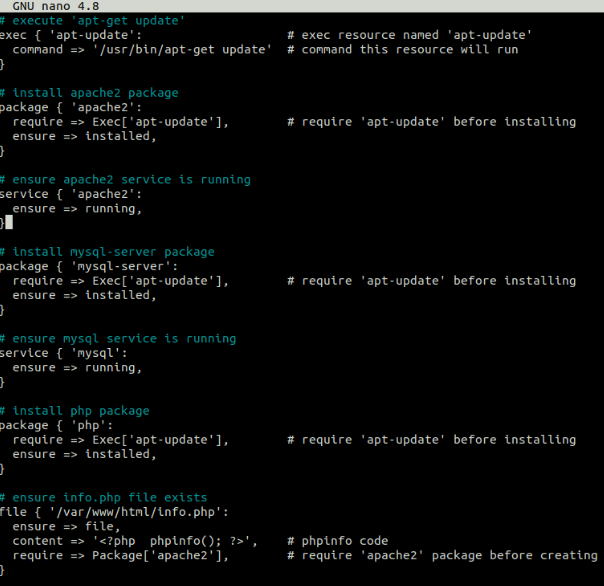
In this file, we'll write a manifest to install the dependencies for the LAMP stack. The code for the same is available on my GitHub repository.
Once done, save and close the file.
Applying the Manifest File Catalog
These steps are to be performed on the Master machine only.
# Change directory to puppetlabs/bin where the puppet executable is located
cd /opt/puppetlabs/bin

# Use apply to apply the manifest scripts
sudo ./puppet apply /etc/puppetlabs/code/environments/production/manifests/lamp.pp
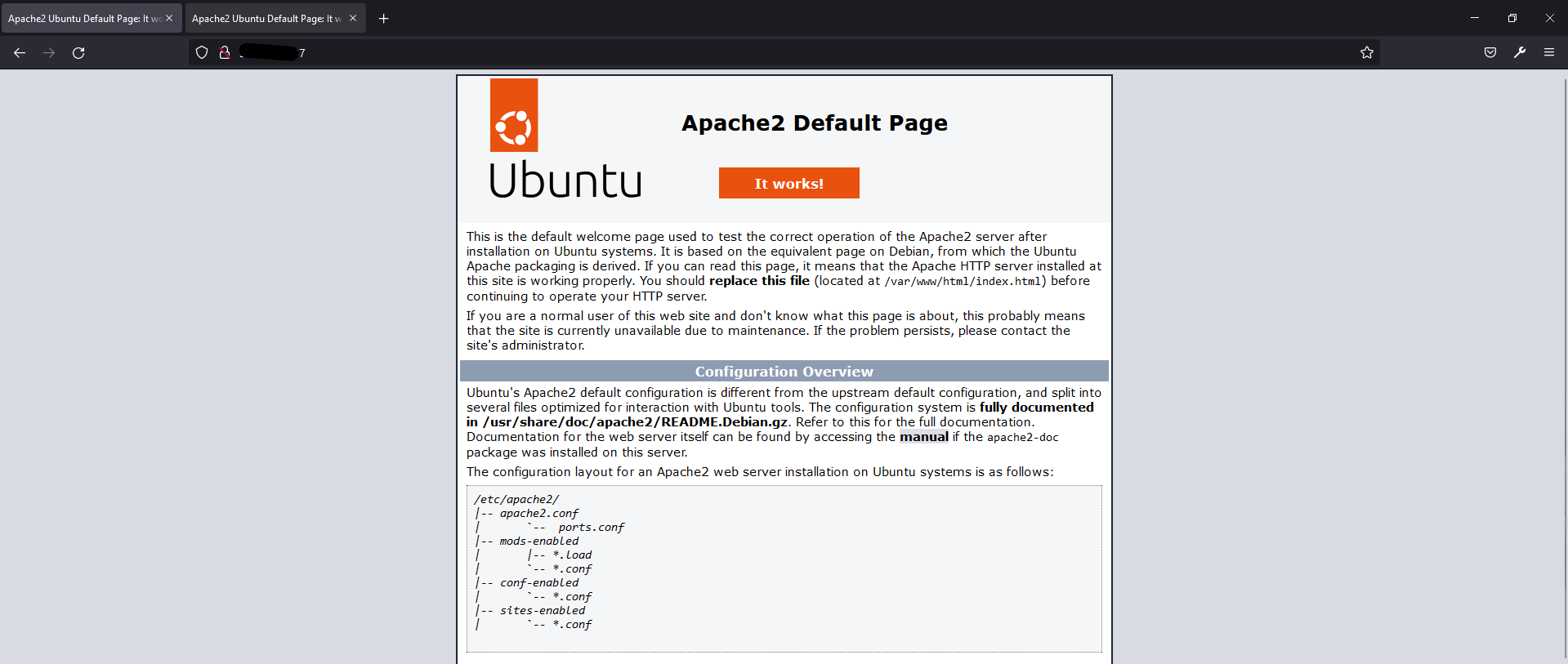
 Once you get a similar prompt, you can go to the browser and check the public IP addresses of both agent machines.
Results
URL: <PUBLIC_IP_ADDRESS_AGENT_1>
URL: <PUBLIC_IP_ADDRESS_AGENT_1>/info.php
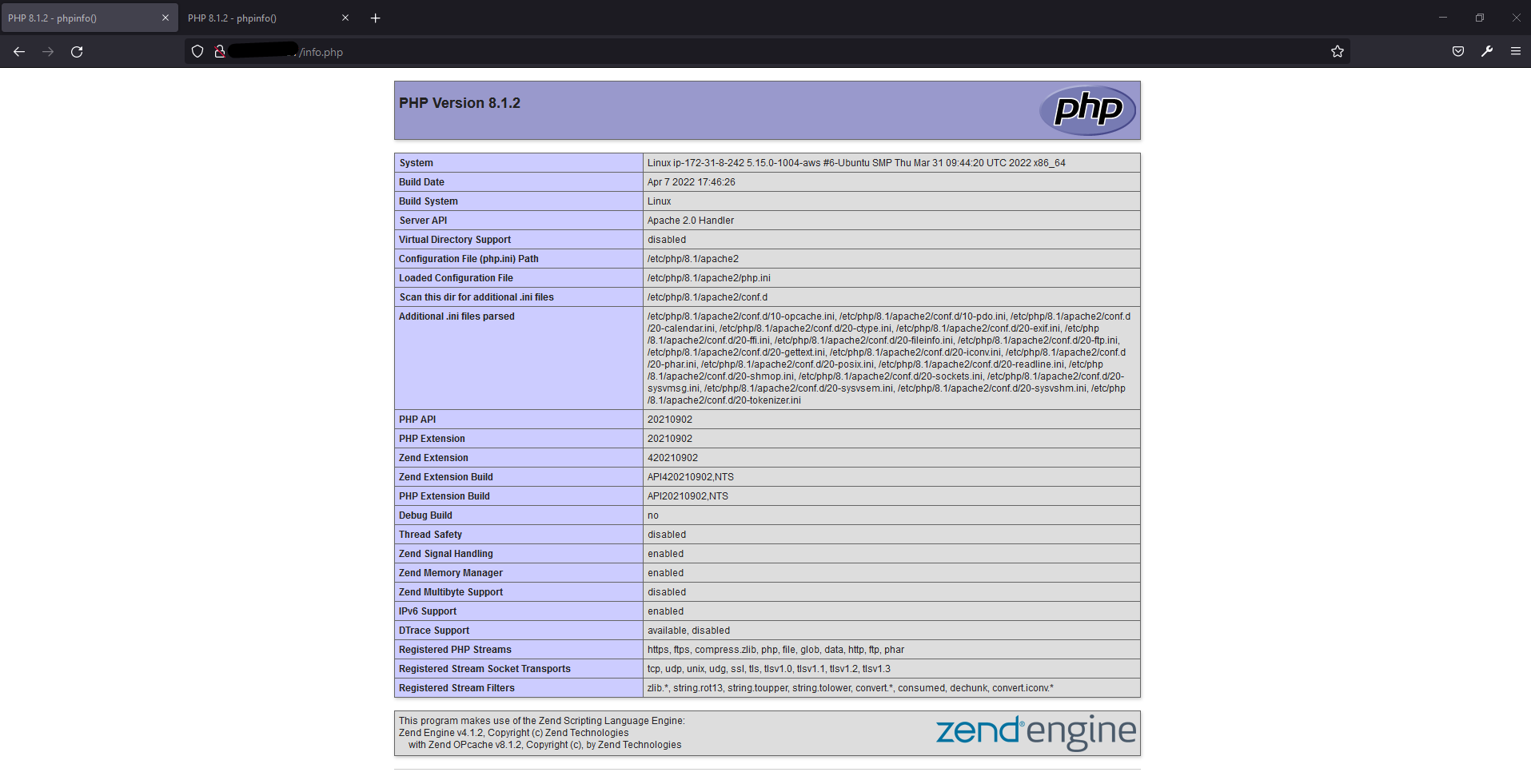
You can also similarly check the public IP address of agent-2 for the same results.
Thus, we learned how to use Puppet, a Configuration Management tool that can be used to provide software and setup across systems in an interconnected cluster.
Thanks for reading, I hope you liked working with Puppet. Until next time, take care, peace :)
About the author
Few interesting things about me:
- Software Engineer @ JP Morgan Chase & Co.
- AWS Community Builder 2023
- I love working with technology
- I enjoy playing video games 😄
Comments
Join the discussionReally helped a lot in my coursework!! Thanks a ton!
Amazing work you are doing sir, Thank you for such informative articles!!!